Getting Started
Create your first resource
A resource is anything your team takes turns using. Adding one takes under a minute.
A resource can be a staging environment, a test database, a shared account, a
device or a meeting room. Give it a name people will recognise and type easily,
like staging-db or room8.
In Slack
- In a channel where Lockit is a member, send
@Lockit new. You can also click Create Resource in the App Home. - In the Add Resource form, fill in:
- Resource Name: what people will type to lock it.
- Resource Description: what it is, so newcomers know.
- Channel for lock/release updates (optional): where Lockit posts each time someone locks or releases it.
- Click Add Resource.
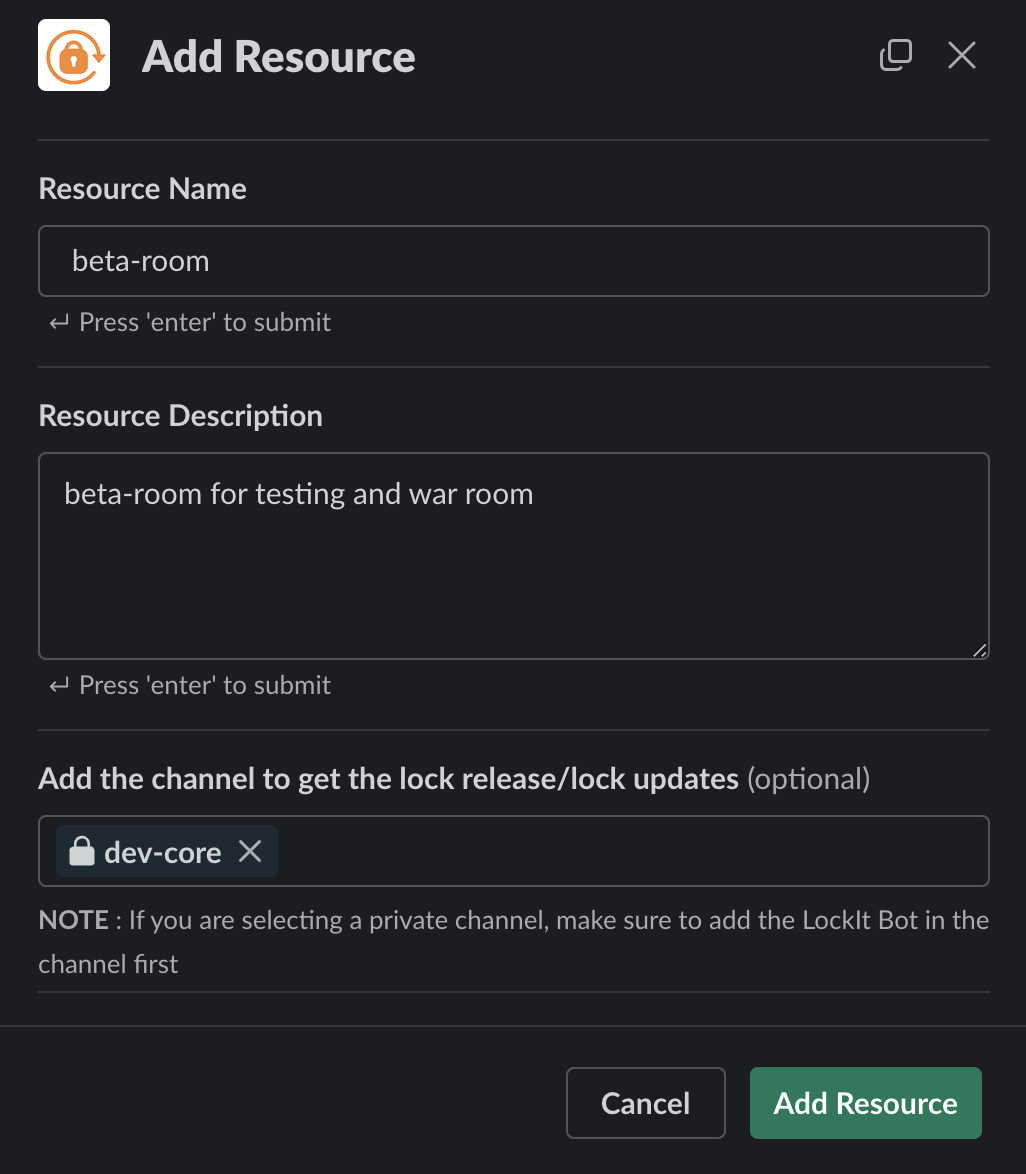
Choosing a private channel for updates? Add Lockit to that channel first
(/invite @Lockit inside it). Otherwise Lockit can't post there.
Check it worked with @Lockit list. Your new resource shows as available.
In Discord
Run this in the channel where you want lock and release updates:
/lockit new name:staging-db
Free plan limit
The Free plan includes 2 resources. To add more, upgrade to Starter (up to 100). See Plans and billing.