Using Lockit
App Home
Lockit's Home tab in Slack shows your plan, your resources and your locks in one place.
Open it
- In the Slack sidebar, find Lockit under Apps.
- Click it, then open the Home tab.
What's on it
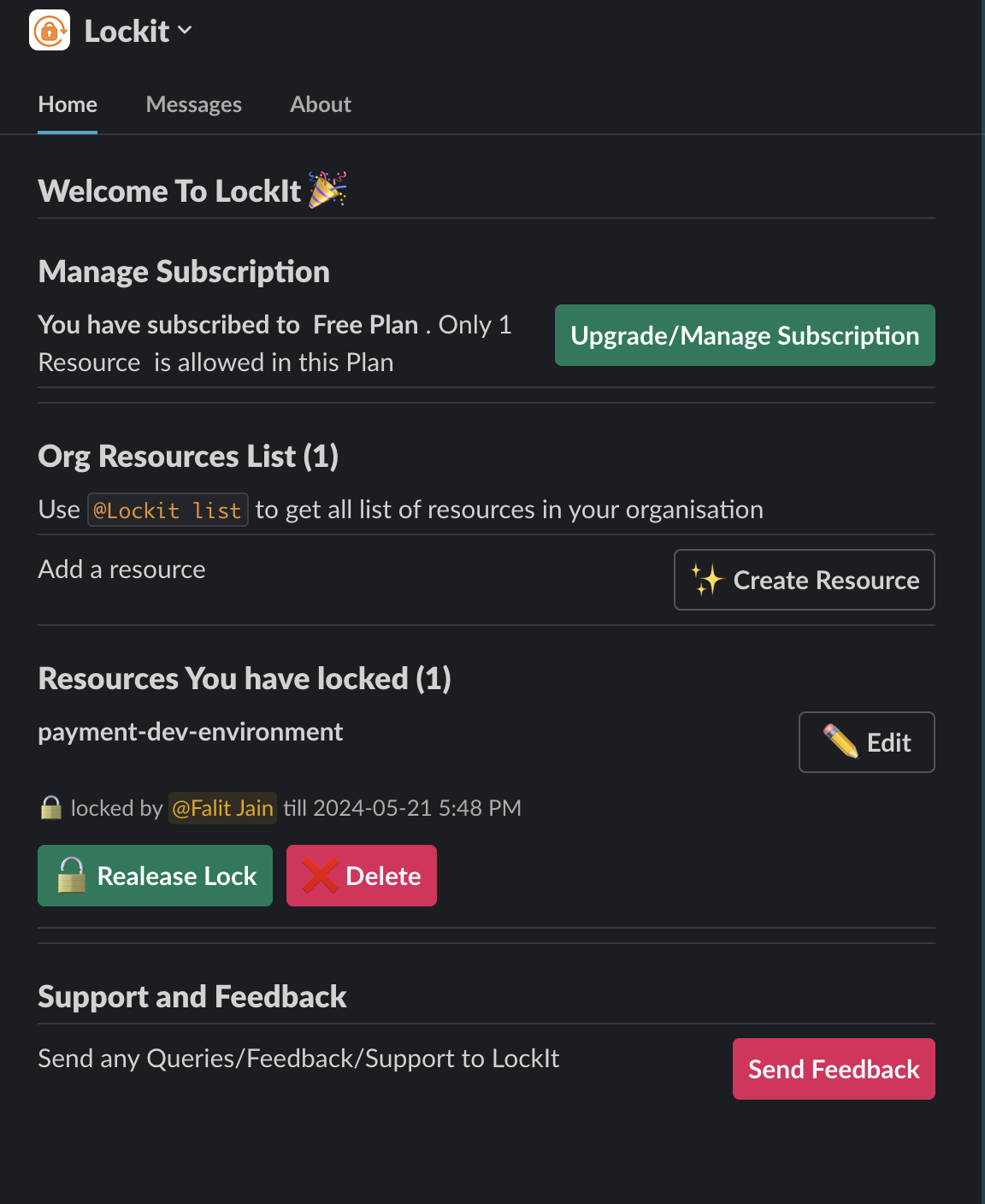
- Manage Subscription: your current plan and its resource limit, with an Upgrade/Manage Subscription button. See Plans and billing.
- Org Resources List: how many resources your workspace has, and a
Create Resource button that opens the same form as
@Lockit new. - Resources you have locked: each lock you hold and when it ends, with Release Lock, Edit and Delete buttons.
- Support and Feedback: Send Feedback sends a question or suggestion straight to us.
- Create API Key: on paid plans, creates a key for the API and MCP server. See API keys.